Want to sign-up with Ting and get a brand new number? Awesome, Let's get started.
ℹ️ Existing user looking for a new number? Head over to Activating a new number on Ting.
What you’ll need
If you're activating a new phone, set up your phone before you begin.
Activating your new number
- Select Mobile from the drop-down in the top-left corner.
- Scroll down the new page to view our mobile plans.
2. Review our plans
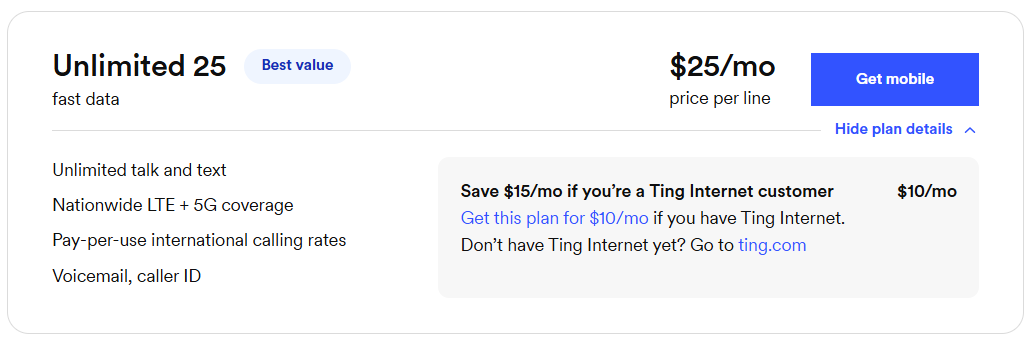
- Review the available plans to determine which one works best for you.
- Select Get Mobile.
3. Check your address
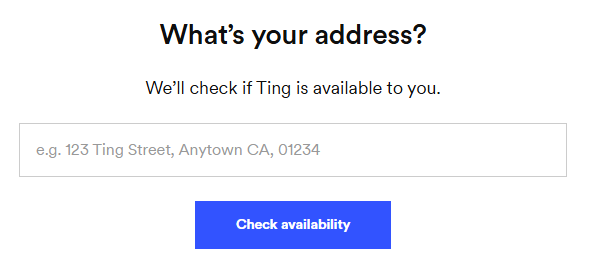
- In the pop-up, enter your home address to check your coverage.
- Select Check availability.
4. Select a plan
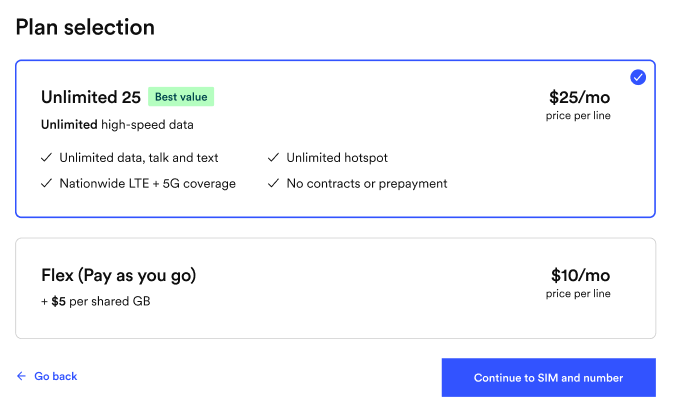
- You'll be presented with a list of available plans.
- Review your selected plan and make sure it’s the right fit for you.
- Want more value? Bundle with Ting Internet and get both for just $99/month(Internet $89 + Mobile $10 per line).
5. Check your phone’s compatibility
- Enter your phone’s IMEI if you're bringing a phone. Select Check.
- Select Continue to move to the next step.
6. Confirm your plan selection
- Select Continue to SIM and number.
7. Get a SIM or check your SIM card
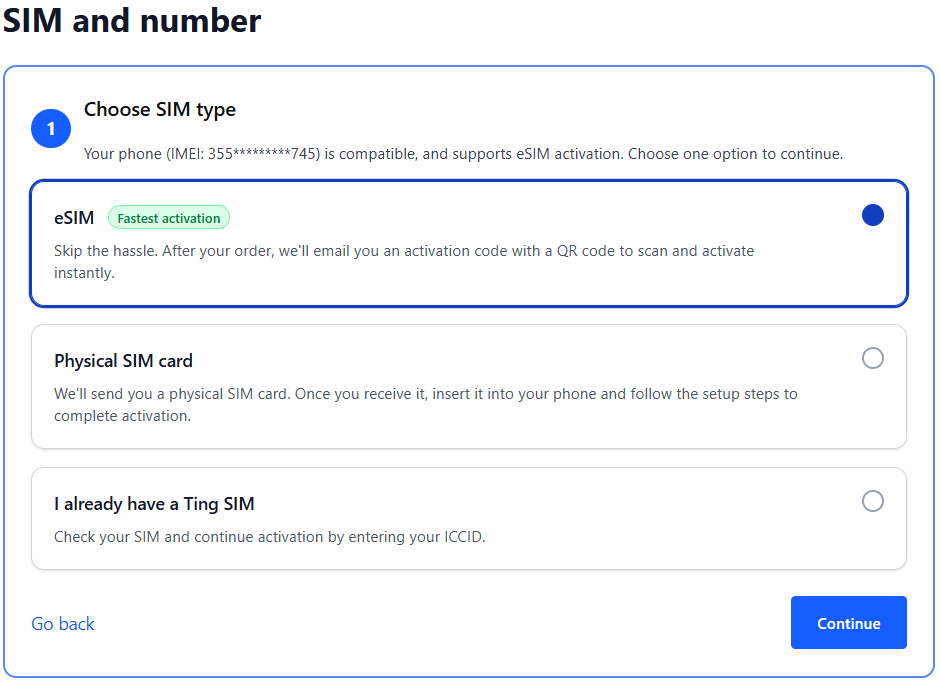
- If your phone is eSIM compatible, you can select the option for eSIM. We'll send you an email with the details after activation.
- If you prefer using a physical SIM:
- Select Physical SIM card to order a new SIM. We'll mail it to you.
- Already have a Ting SIM? Select I already have a Ting SIM. We'll ask for the SIM number in the next step.
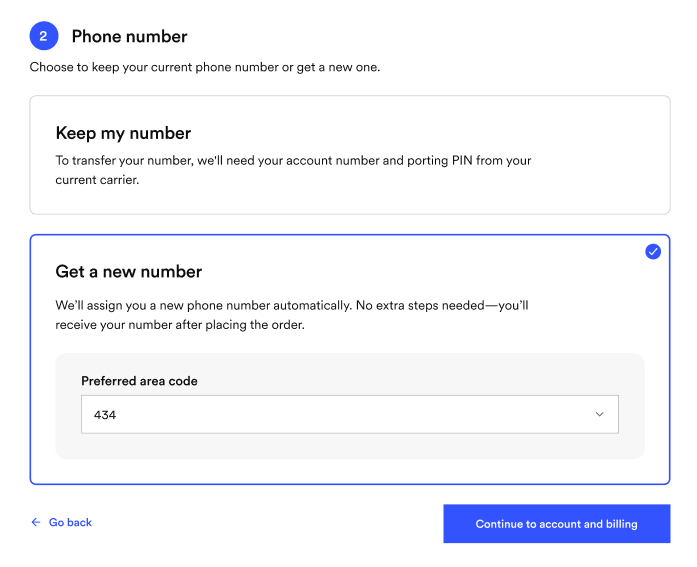
8. Select your number option
- Select Get a new number.
- Select from the available list of area codes.
9.Create your account
- Enter your name, email and password.
- Save your login details—you’ll need them to sign in later.
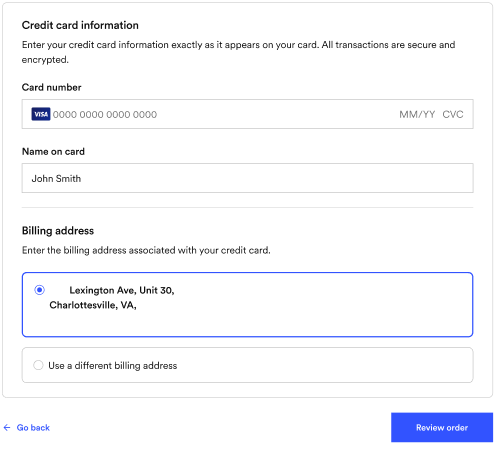
10. Enter your billing information
- This will bet the card we use for automatic payments.
- Once your payment information is entered, click Review my order.
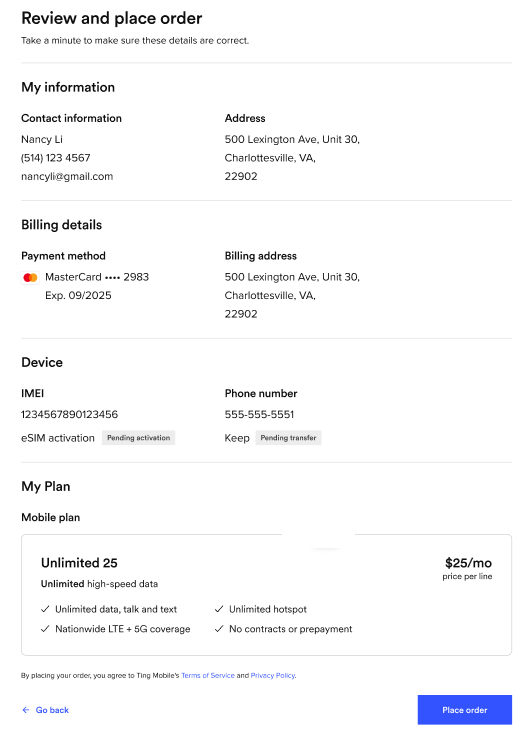
11. Review and confirm
- Double-check your details, agree to the terms of service and click Activate.
- If any of your details need to be changed, select See an error? Go back.
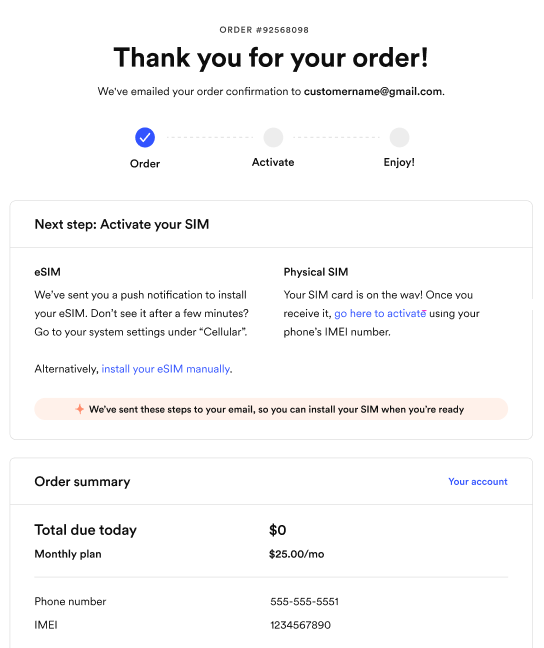
12. Complete your activation
- Activating a physical SIM? Simply turn your phone off, insert your SIM card and turn it back on to complete activation.
- Being sent a physical SIM? Once it arrives, just follow theses instructions to get started.
- Using eSIM? Your phone may automatically download it for you. Just turn your phone off and on.