Help center
Contact Us
Help center
Contact Us

Help Center - Internet

Account and Billing

Setting up ACH on your Internet account
Other Articles in this Section
Adding or Updating a Payment Method on your Internet Account
Important information about your $9 Ting preorder refund - FAQ
Canceling your Ting Internet Service
Billing basics: What to Expect from Ting
Ting Infrastructure Tax Passthrough
Simply Bits Billing Improvement FAQ
Updating your Ting Account details
Updating your Ting Internet Account Password and Security Options
Ting Internet Billing Improvements FAQ
Returning your Ting Internet Equipment
Viewing your Ting Internet Bill and History

Setting up ACH on your Internet account

In this article
Setting up ACH FAQ

What is ACH?

ACH (short for Automated Clearing House) is a secure, hassle-free way to pay straight from your bank account–no checks, no cards, no extra steps. It’s the same system used for direct deposit and automatic bill payments, making it a great option if you prefer a smooth, set-it-and-forget-it way to stay on top of your internet bill without relying on a credit card.

📌 ACH is currently only available for payments on your Ting Internet service.

Setting up ACH

Ready to get started with ACH on your internet account?

1. Manage payments

Sign in to your Ting account to get started.

  • Sign in to your Ting account.
  • From your Account overview, Select Manage payment.
2. Add a payment method

Set up your ACH payment option.

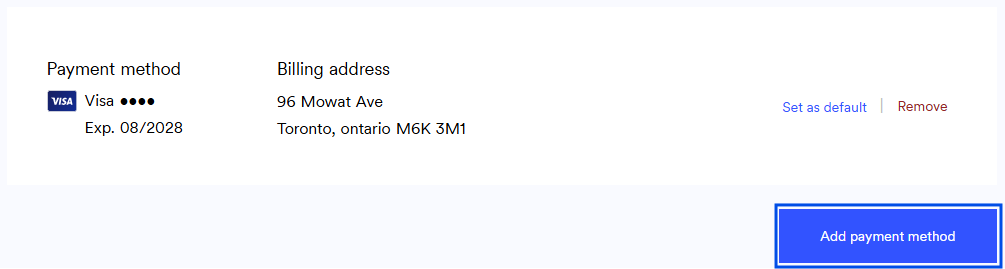
  • In the Payment details section, click Add payment method.
3. Enter your details

A pop-up will open to add your payment method.
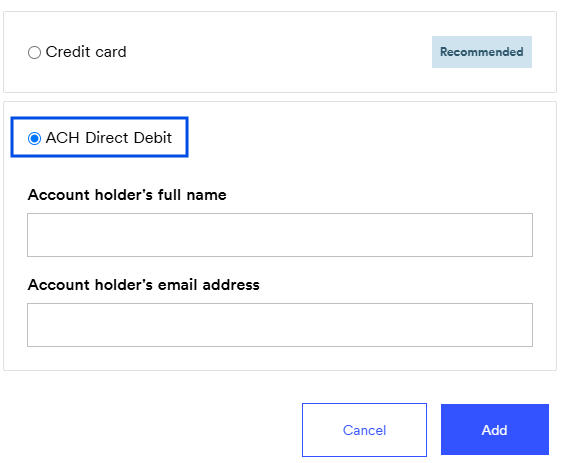
  • Scroll down and select the ACH Direct Debit radio button.
  • Enter the account holder’s full name (must match the bank account) and email address.
  • Click Add to continue.
4. Connect your account

A second pop-up will open from Stripe, our secure payment processor.
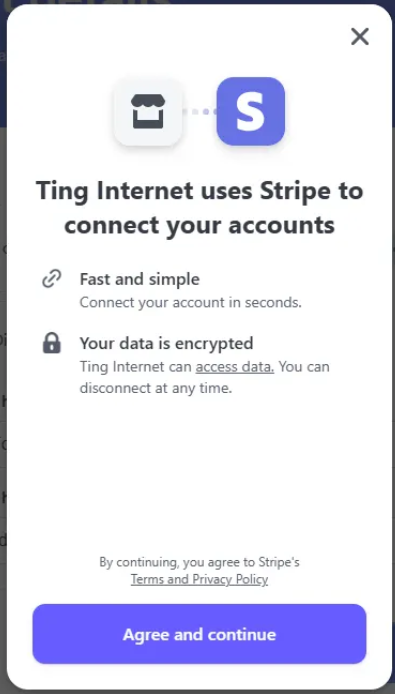
  • Review Stripe’s terms of service.
  • Click Agree and continue when you’re ready.
5. Locate your bank

Choose the bank you want to connect.

  • Scroll through the list or use the search bar to find your bank.
  • Select your bank and click Continue.
6.  Login and connect

Securely log in to your bank account.
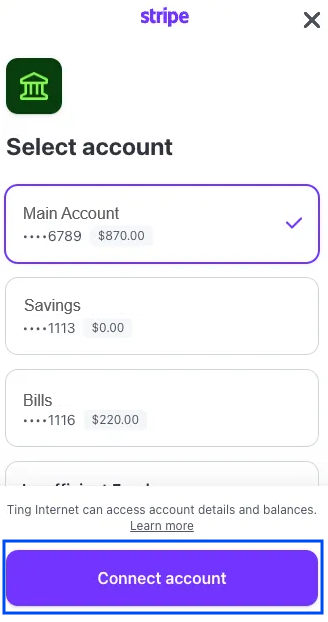
  • Use your banking credentials.
  • Select the account you want to use for payments.
  • Click Connect account
  • If successful, you’ll see a confirmation screen. Click Done to finish.

FAQ

Is ACH secure?
ACH transfers are handled through a federally regulated network with strong encryption. When you add your bank account through Ting, the process is powered by Stripe, a trusted and secure payment platform.

Does Ting charge fees for ACH payments?
Nope. We don’t charge any extra fees for using ACH.

What if I want to change my bank account later?
No problem. Just add a new bank account using the same steps. You can then set it as your default and remove the old one.

How long do ACH payments take?
ACH transfers typically take 1–2 business days to process, so make sure to plan ahead if you’re paying close to your due date.

Can I use a savings account?
Yes–as long as it’s eligible for ACH transfers. Some savings accounts have restrictions, so it’s best to check with your bank first.

Other Articles in this Section
Adding or Updating a Payment Method on your Internet Account
Important information about your $9 Ting preorder refund - FAQ
Canceling your Ting Internet Service
Billing basics: What to Expect from Ting
Ting Infrastructure Tax Passthrough
Simply Bits Billing Improvement FAQ
Updating your Ting Account details
Updating your Ting Internet Account Password and Security Options
Ting Internet Billing Improvements FAQ
Returning your Ting Internet Equipment
Viewing your Ting Internet Bill and History
  • Ting Internet
  • Ting Internet Status
  • Ting Mobile
  • Privacy
  • Terms